The Sims Freeplay- Adding Balconies

Once you complete the Lovey-Dovey Balcony Quest you can build balconies on houses that have more than one floor, this post explains how to add a balcony and all the ways you can customise it!

NOTE: you will not be able to customise a balcony until the quest has been completed

20151024-181051.jpg

1.Building a Balcony

You can build a balcony on any floor except the ground floor, you need to go to the house section of buy mode, click on the last orange tab then you can touch and drag anywhere inside the yellow highlighted area but it must be connected to the house. Green means it can be built there.
image

Drag the white highlighted edged to resize

Balconies can be joined together to create more interesting shapes.

What is the cheapest balcony? A 2×1 balcony will cost S6,000

2.Support posts

The second tab is support posts, you don’t need to add them but you may want to if you want a larger balcony further away from the house. These are placed underneath the balcony (if you have two balconies one above the other you can add support posts to the balcony below)
image

This video explains how support posts are used to create bigger balconies:

3.Balcony Paving

The third tab is where you can select the type of tiles you want on your balcony, click on the style then click on the balcony
image

4.Railings

The fourth tab changes the railings, again click on the style then onto the balcony and it will place them around the edge
image

Deleting a Balcony

While on the balcony tab click on the balcony you wish to delete and select the red simoleon symbol to sell it.
image

Is it possible to build a room above a balcony? No it isn’t

For more details you can watch my video, Building Patios, Balconies and Basements:

Related Posts: Adding Patios and Adding Basements and Adding Mezzanine Floors


THE SIMS FREEPLAY
©THEGIRLWHOGAMES.BLOG

The Sims Freeplay- Adding Patios

Once you complete the Peaceful Patios Quest you can build patios in your gardens, this post explains how to add a patio and all the ways you can customise it!

NOTE: you will not be able to customise a patio until the quest has been completed

20150515-131653.jpg
1.Building a patio

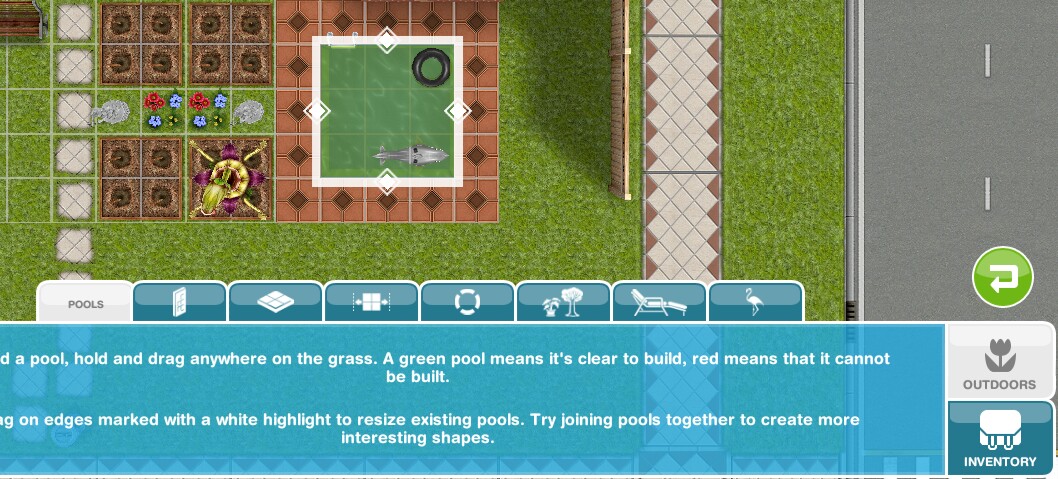
You do this the same way you build a room or a pool, by touching and dragging anywhere on the grass, it will be green if it can be placed there

Drag the white highlighted edged to resize

You can join patios together, the patio in the picture below is a 4×4 square with two 1×7 patios each side

20150515-131723.jpg

What is the cheapest patio? A 2×1 will cost S30,000

2.Patio Paving

The second tab in the outdoor section is where you can select the type of tiles you want on your patio, click on the style then click on the patio

20150515-131835.jpg

3.Railings

Railings are the third tab along, again click on the style then onto the patio and it will place them around the edge

20150515-131751.jpg

4.Patio Gates

Last patio tab is gates, you can only add a gate to a patio with a railing, like a door you can place wherever you want to on the railings

20150515-131812.jpg

Deleting a Patio

While on the patio tab click on the patio you wish to delete and select the red simoleon symbol to sell it.

Now you know how, its time to create beautiful patio gardens! Enjoy!

20150515-131902.jpg

For more details you can watch my video, Building Patios, Balconies and Basements:

Want to know how to have different patio styles on the same patio? Check out this video!

Related Posts: Adding Balconies and Adding Basements and Adding Mezzanine Floors


THE SIMS FREEPLAY
©THEGIRLWHOGAMES.BLOG

The Sims Freeplay- Adding a Pool

Before you can get the tools to add a pool to your sims gardens you need to have completed the Its All Going Swimmingly Quest. Once that quest is complete in the garden section of the home store you will see the new pool tabs which includes building the pool, pool interior, pool paving, paver width and pool items.

20140917-155005.jpg

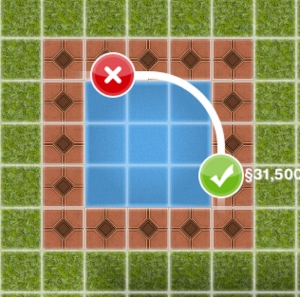
Building a pool is a lot like building a room but you need to remember you need at least one extra square around the pool for the paving so even though the pool can be as small as 3×3 with the paving its 5×5.

20140917-155102.jpg

What is the cheapest pool? A 3×3 (or 5×5 with the paving) will now cost S13,620

And unlike rooms you can join pools together to make different shapes!

20140917-155132.jpg

Once you have built the pool you can add items to it such as inflatables and a diving board (if you have completed the diving hobby collection for the first time) and items around the pool such as beach towels.

Building a pool with an island

Paver Width
Click on the paver width tab and select the width you want to increase/ decrease the paving around your pool, the picture below shows the widths:
image

If you have a weather machine at your house where your pool is when you put it on snow it freezes the pool so you can complete the figure skating hobby!

20140917-155159.jpg

Cleaning the pool

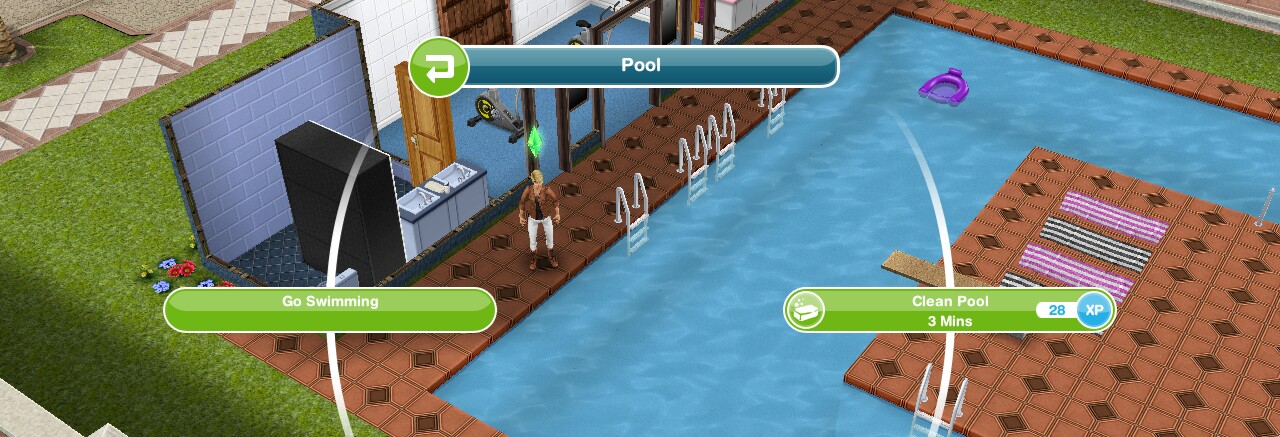
When the pool is green it will need to be cleaned, otherwise your sims will not be able to use the pool, click on the pool and select the option clean pool.

Watch this video for more information on cleaning pools and using the weather machine!

Adding Diving Boards

Diving boards have to be placed with one square over the water and 2 squares on land, like the picture below shows:
image

You can unlock diving boards by completing the diving hobby for the first time.

Using the pool

In the pool you can:
image

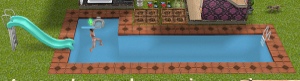
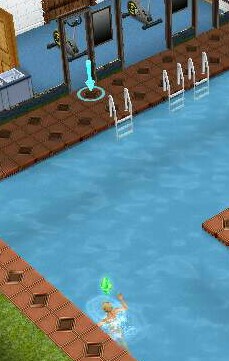
Go swimming, click somewhere in the pool and your sim will swim there:
image

If you have two sims you can interact with the other sim:

  • Flip- 4 seconds
  • Splash- 10 seconds
  • Chat- 4 minutes

image

Toddlers can play in the pool with the help of a teen, adult or senior.

NOTE: You need steps for your sims to be able to use the swimming pool

When you want your sim to get out of the pool click on the ground above some steps and they will get out and get changed.
image

Deleting a pool

To delete a pool go to the outdoor section of buy mode:
image

Then click on the pool, click the red simoleons symbol to sell it:
image


THE SIMS FREEPLAY
©THEGIRLWHOGAMES.BLOG

The Sims Freeplay- Adding Stairs

Adding stairs can be a bit tricky if you haven’t done it before so hopefully this guide will be useful! You can only add stairs once you have completed the Multi Story Renovations Quest.

Once that is completed you can add a new floor, to do this, click on floor construction (second tab in the house section of home store) Then you will see a white highlighted area, click that and it will show you how much a new floor will cost you, click the green tick to buy it:


Then you need to add rooms to your new floor, you do this by clicking on the upstairs button on the right of the screen:

This will take you to the next level, then you can add a room like you normally do, if you don’t know how read my adding, deleting and resizing rooms post here

NOTE: you must add rooms to the second floor before you can add stairs!

Lastly you can add the stairs. Stairs can also be found in the house section, select the one you want to buy and you can then place it in your house:

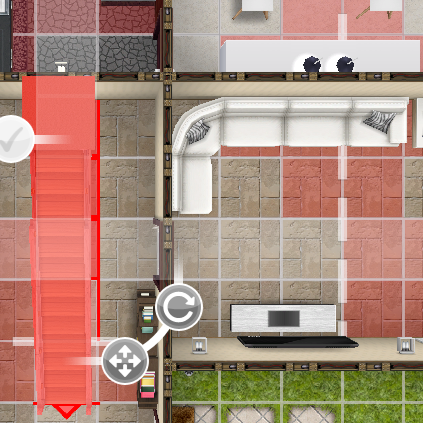
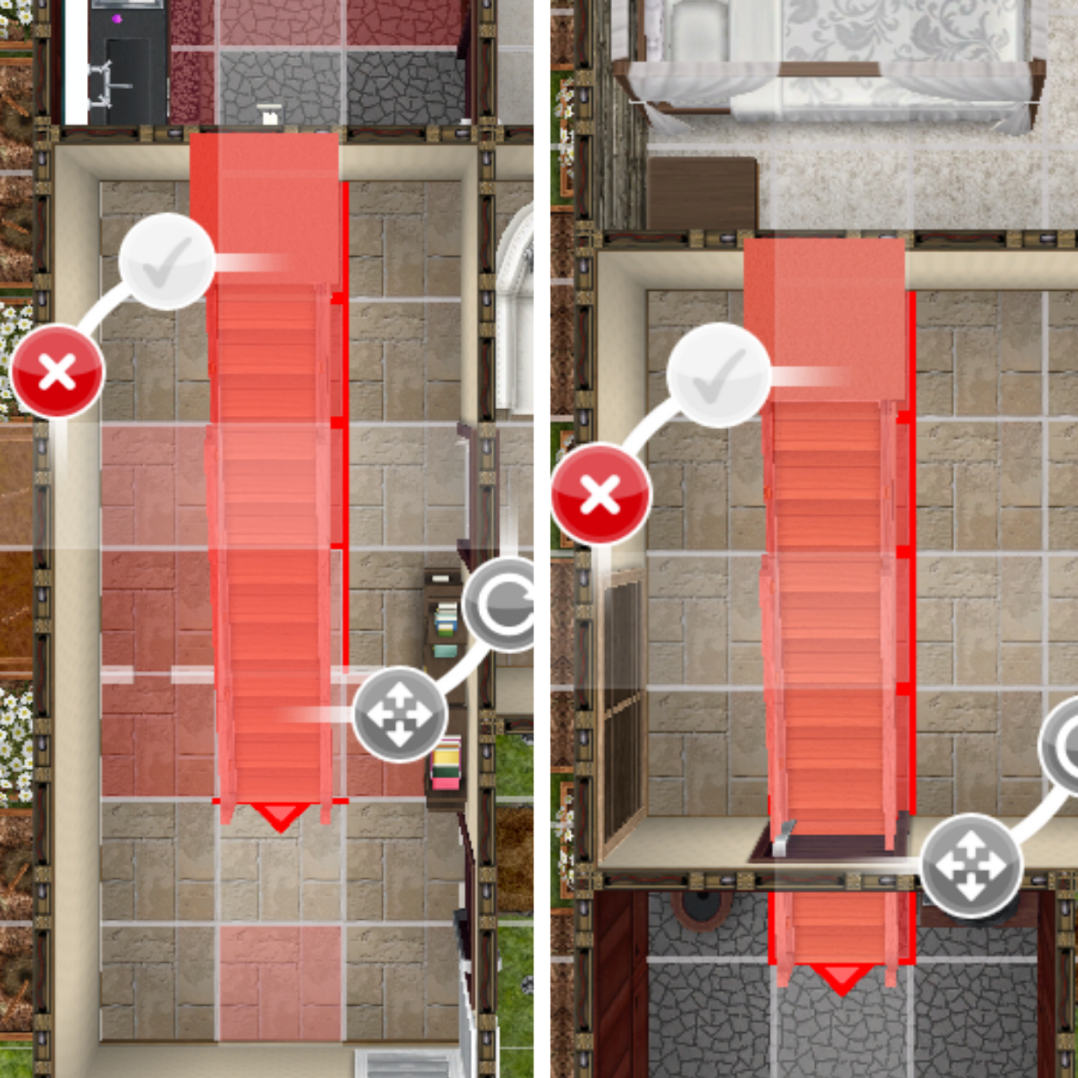
The image below shows you how it looks when the stairs can’t be placed:

Why can’t I place stairs in my house?

  • There may be something in the way downstairs (like in my picture above)
  • You may be trying to place stairs through the white lines- the white dotted lines show you were the rooms are above so you cannot place stairs on them:

  • There may be something in the way on the floor above- use the floor button on the side of your screen to see what is in the way upstairs (the squares will appear red if there is something in the way upstairs)

To fix this you could move items upstairs that are in the way, if you can’t because a wall is in the way you may need to choose a different style of stairs which is what I did, I couldn’t fit in these stairs so I decided on the compact staircase instead.

This picture is how it should look when you can place the stairs in your house, press the green tick to buy them:

You now have stairs in your house!


How much does each floor cost?

2nd- S300,000

3rd- S500,000

4th- S800,000

5th- S1,000,000

Which floor do I have to place the stairs on?

If you want your stairs to reach the second floor you will need to place your stairs on the ground floor

If I delete my house will I still have the 2nd and 3rd floors or will I have to buy them again?

Unfortunately you will have to buy them again now, they have annoyingly changed this!

Can I add more than 4 sims to my house now I have another floor?

No, the maximum is still four

How do I add stairs outside?


THE SIMS FREEPLAY
©THEGIRLWHOGAMES.BLOG

The Sims Freeplay- Building, Deleting and Resizing Rooms

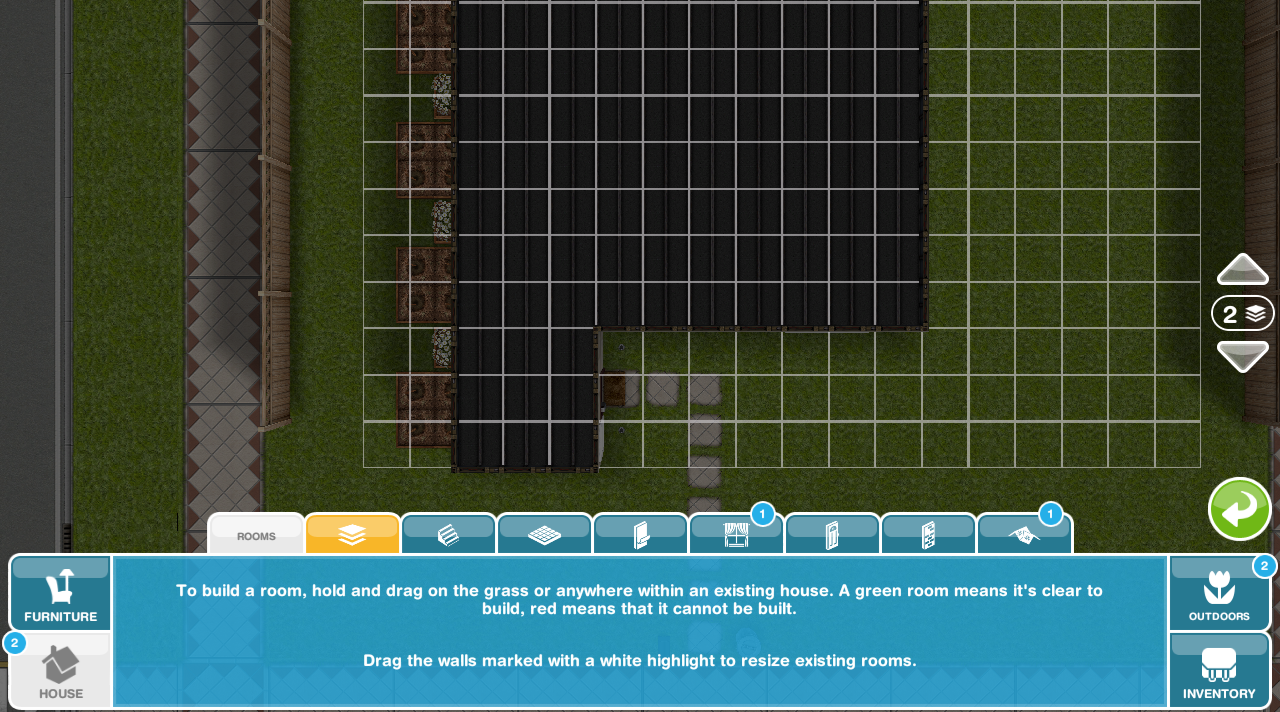
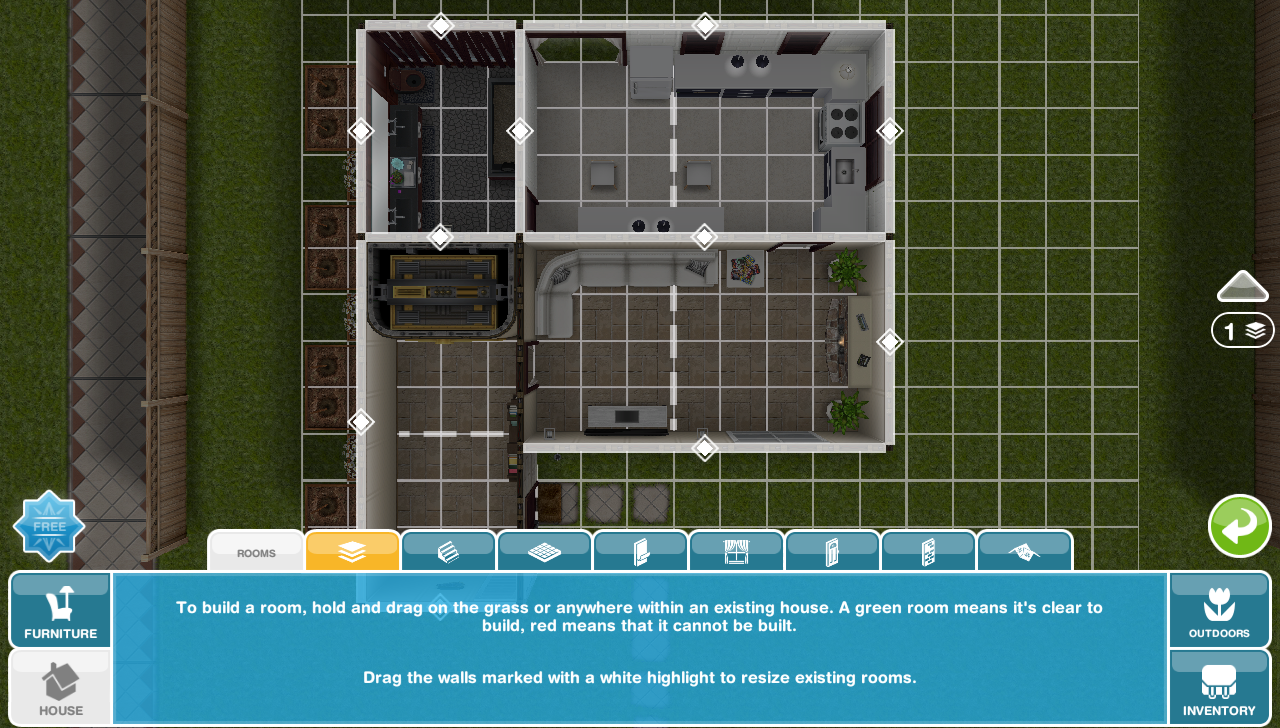
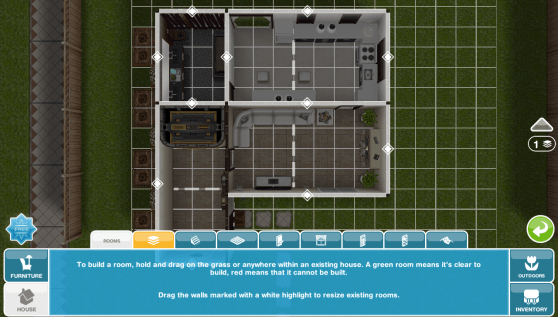
This is a guide to show you how to build, resize and delete rooms in the game. You firstly need to go to the house section of the home store and it will open on the first tab called rooms:


This gives you some instructions about how to build a room:

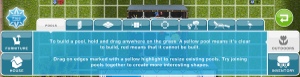
To build a room, hold and drag on the grass or anywhere within an existing house. A green room means it’s clear to build, red means that it cannot be built.

Drag on walls marked with a white highlight to resize existing rooms.


Building a RoomBuilding L-Shaped RoomsDeleting a Room Resizing a Room FAQs


BUILDING A ROOM

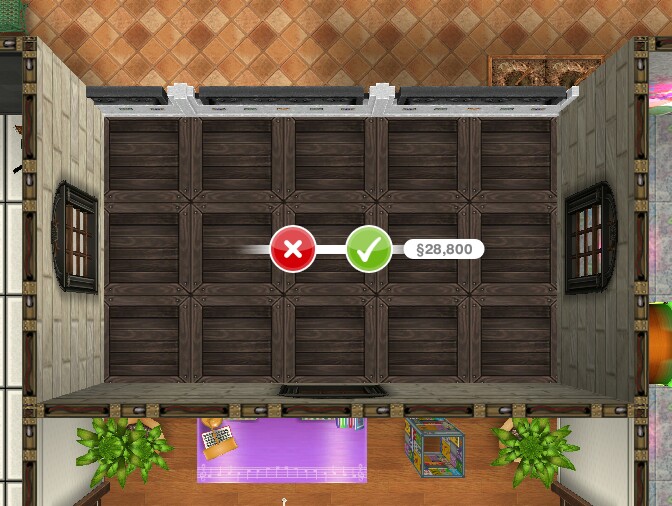
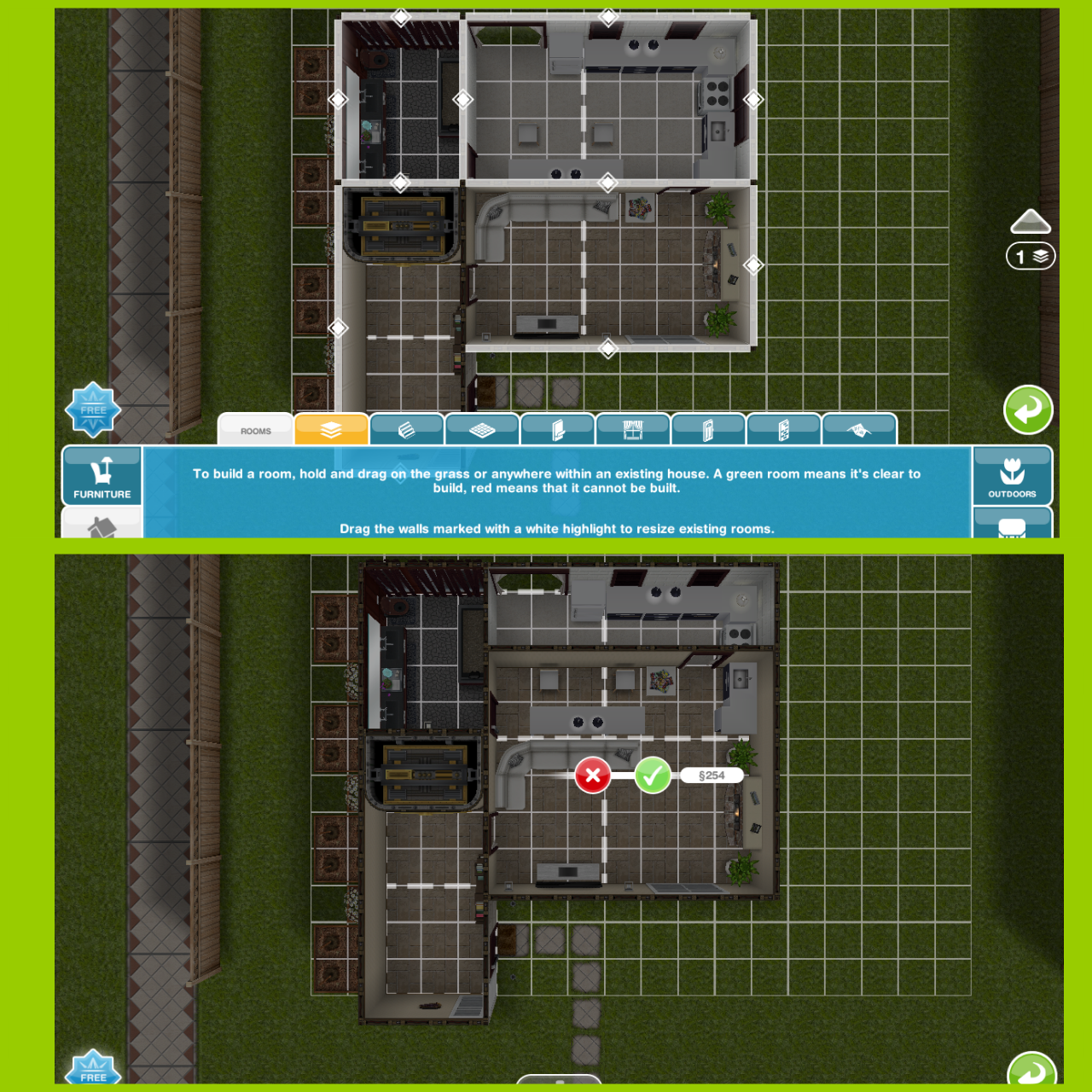
Like the instructions say you need to hold and drag on the grass inside the grid, you cannot build a room outside of the grid. Once you have dragged and created a room you will see an image similar to the one below:

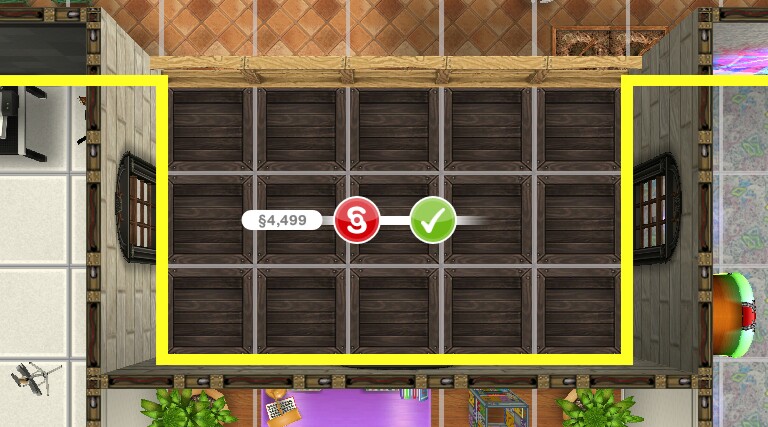
Click on the red cross to delete it or click the green tick to build it for the price shown on screen.

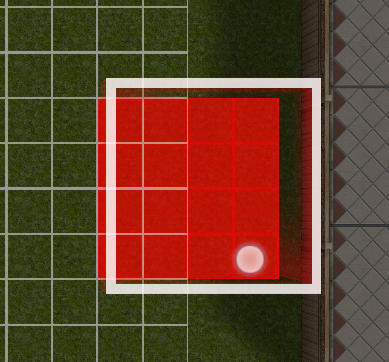
The room will appear red as shown below if you cannot build it there:

L-SHAPED ROOMS

Once you complete the L-Shaped Rooms Feature Quest you will be able to create L-Shaped Rooms!

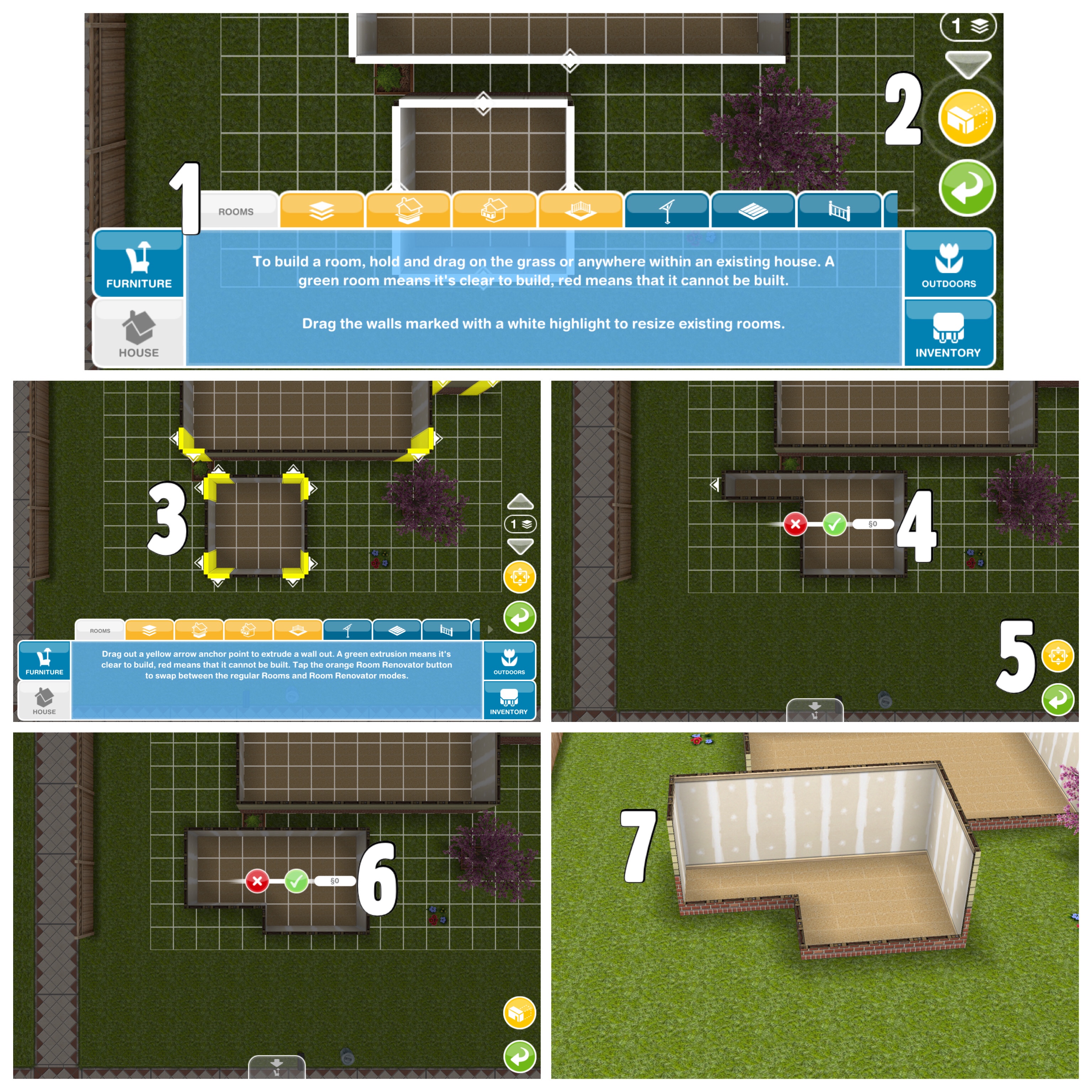
You firstly need to create a room like normal as shown in the steps above then you will notice one of these two orange buttons now on the screen, click on the room renovator button to be able to create an l-shaped room and when you are done click the room button to create normal rooms:
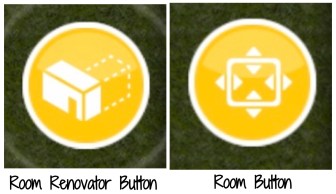
I’m going to use the image below to explain how to create l-shaped rooms:

1.Build a room like you normally would

2.Click on the room renovator button

3.You will see yellow lines on some walls, these are the ones that can be extended, click and drag on these to make your l-shape

4.Click the green tick to confirm

5.Click on the room button to modify your l-shaped room (this allows you to drag that section to make it wider)

6.Click the green tick to confirm

DELETING A ROOM

Deleting a room is actually selling it as you will earn simoleons when you delete it. To delete a room you need to go to the rooms tab again, then you can click on a room and if it can be deleted it will look like the image below:

You can click the tick to keep the room or click the red simoleon to sell the room for the price that is shown next to the red simoleon button. All the items in the room will move to your inventory- apart from the wallpaper and flooring.

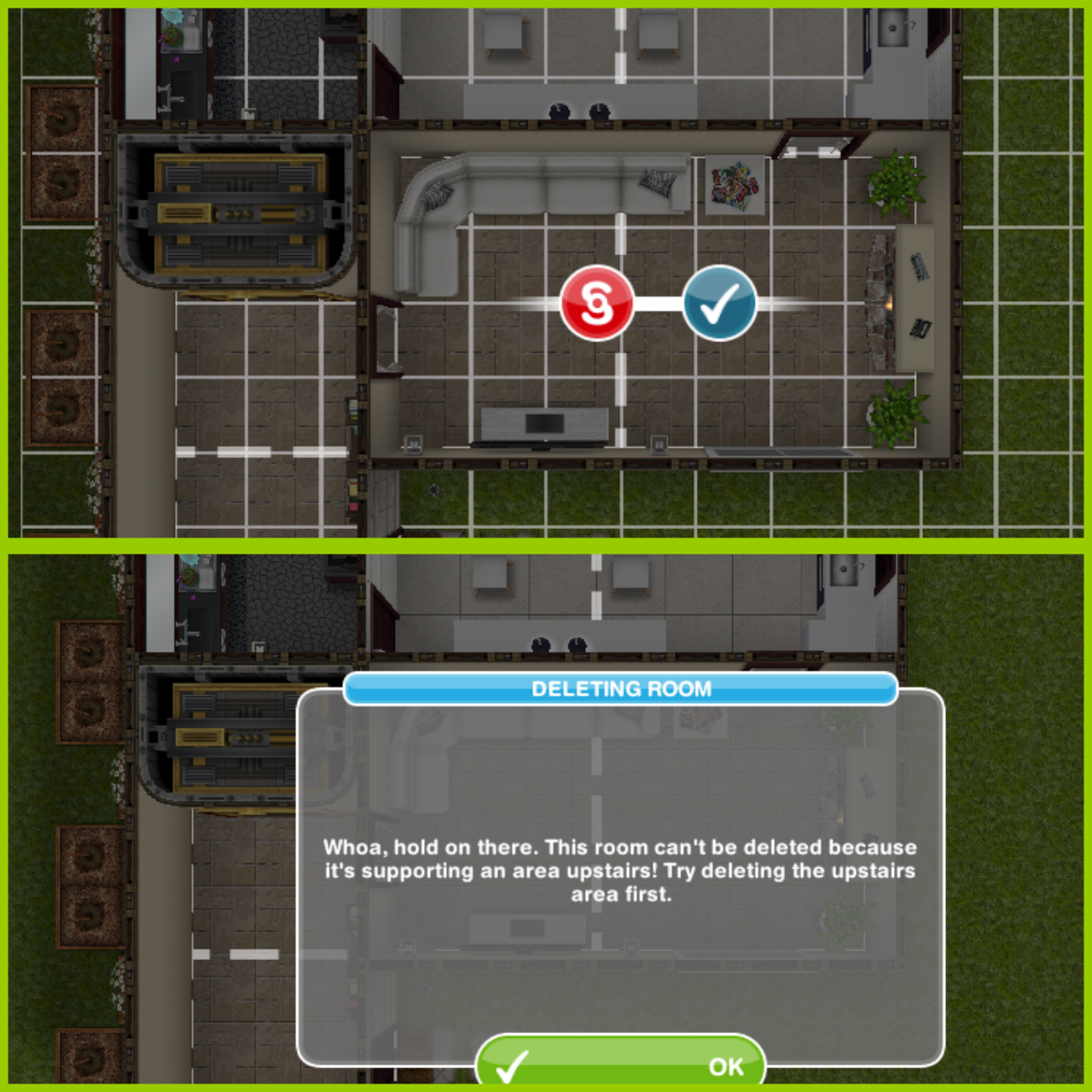
Not all rooms can be deleted, if it appears like the image below you can’t delete it:
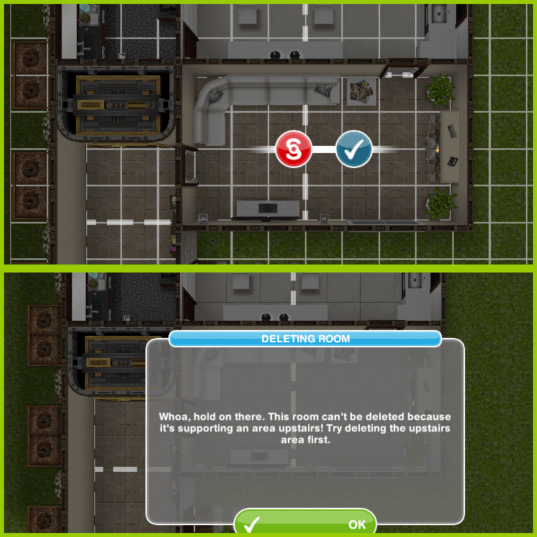
L-shaped rooms can be deleted in the same way as normal rooms

Why can’t I delete a room?

The two main reasons are:

  • If you have a second or third floor you will be unable to delete a room when there is a room above it, you need to delete the room above first, which is why I cannot delete the room in the image above.
  • If there is a plate in the room you will need to get a sim to clean it up first before you will be able to delete the room.

RESIZING A ROOM

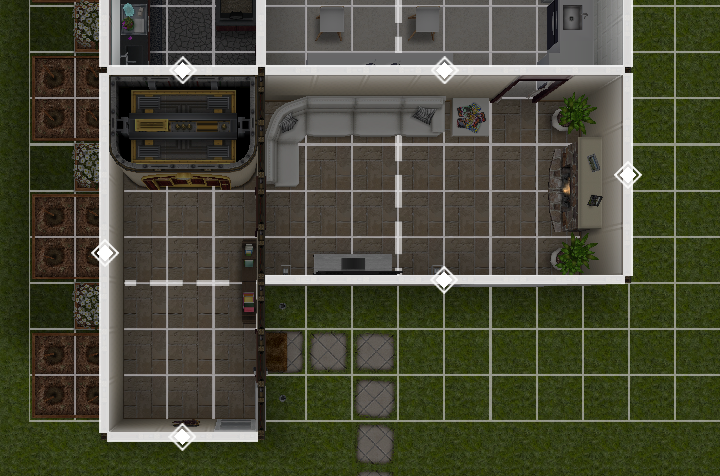
On the same tab you can resize any room that has a highlighted arrowed edge, it will look like the image below:
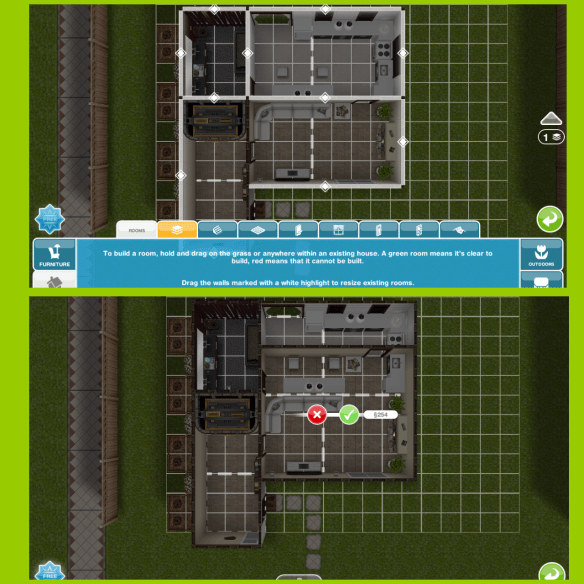
When you resize the room the options that appear are the same as building a room.

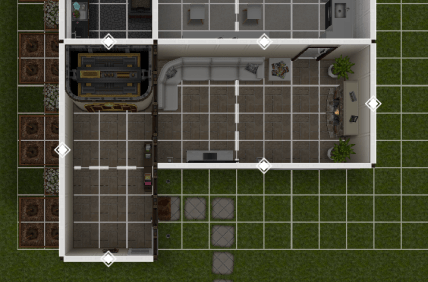
Why can’t I resize every room? If two rooms of different sizes are next to each other then you will not get the option to resize between the two rooms, rooms have to be the same size to resize them together.

For example, the lounge and kitchen can be resized to make one of them smaller and the other one bigger:
But the hallway and lounge cannot be resized because the hallway is longer than the lounge:

Frequently Asked Questions:

  • Can you add a room inside a room? No you cannot
  • Can you delete a wall? No, you can only delete the whole room
  • Can I join two rooms together to make one? You cannot delete walls but you could do this either by adding a door between the two rooms or deleting the rooms and building one big room in place
  • Why can’t I delete rooms on my ground floor? If you have a room above you will have to delete the room above first before you can delete rooms below
  • What is the smallest room you can build? 1×2
  • How much is the smallest room to build? S40
  • Can I move a house to a new lot? No you cannot
  • Can I move a room to a different part of the same lot? No you cannot, you would have to delete the room and build it where you wanted it
  • Why can’t some rooms be resized? If rooms are a different size then you will not be able to resize them, read the resizing section of this post for more information
  • Can I change the flooring/walls in half of the room? You will have to have the same flooring in the whole room but if you complete the Back to the Wall Quest you will be able to have different wallpaper on each wall
  • How do I add a second floor and stairs? Give this post a read!

Related Posts: Adding Patios and Adding Balconies and Adding Basements and Adding Mezzanines


FIND THIS POST HELPFUL?

Buy Me a Coffee at ko-fi.com

THE SIMS FREEPLAY
©THEGIRLWHOGAMES.BLOG