This post will explain how to send your preteen and teen sims to school and what they earn when they level up in their education.
PRETEEN
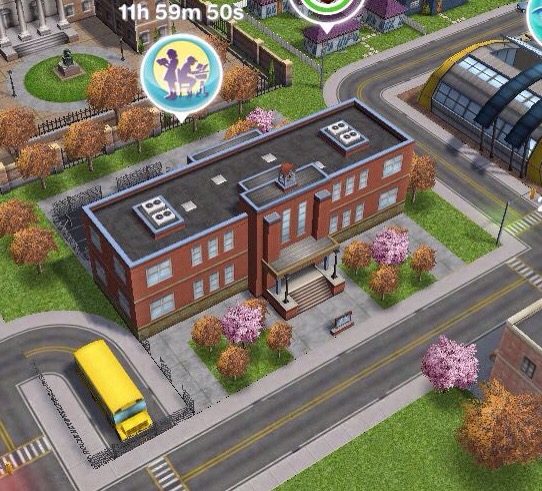
Complete the Preparing for Preteens quest to unlock the Simtown Elementary, once you have a Preteen you can send them to school.
How do I send a preteen to school?
Go to the career tab, find the preteen and it will say ‘not enrolled’ click on the mortar board symbol to enrol them at school: They will be at school for 5 hours and will start from level 3, grade C (no idea why they don’t start from level 1 but you can get them down to level one (if you really wanted to) by having them leave school and then enroll again, each time they leave they will level down)
Level 1: E S5 300XP
Level 2: D S25 350XP
Level 3: C S130 400XP
Level 4: C+ S240 450XP
Level 5: B S310 500XP
Level 6: B+ S390 525XP
Level 7: A S480 550XP
Level 8: A+ S600 600XP
Level 9: A++ S645 650XP
Level 10: A+++ S700 800XP
The first preteen to go to elementary school in your town will unlock new items when they level up:
Level 4: C+ 2+2 is 4 poster
Level 5: B Planets poster
Level 6: B+ Science project
Level 7: A Einstim poster
Level 8: A+ Model UFO
Level 9: A++ School Certificate
Level 10: A+++ Spelling Bee Trophy
Further preteens will earn town value as a reward for levelling up:
Level 4: C+ 1,000 Town Value
Level 5: B 2,000 Town Value
Level 6: B+ 5,000 Town Value
Level 7: A 7,500 Town Value
Level 8: A+ 15,000 Town Value
Level 9: A++ 20,000 Town Value
Level 10: A+++ 30,000 Town Value
TEEN
Complete the Higher Education Quest to unlock Simtown High to be able to send your teenage sims to school.
How do I send a teen to school?
Go to the career tab, find the teen and it will say ‘not enrolled’ click on the mortar board symbol to enrol them at school:
NOTE: this option will be locked until you build the Simtown High School
They will be at school for 5 hours
Level 1: Junior Student- S300 300XP
Level 2: Hall Monitor- S400 350XP
Level 3: Teachers Pet- S450 400XP
Level 4: School Band Leader- S500 450XP
Level 5: Senior Student- S550 500XP
The first teen to reach level 2 at the high school in your town will unlock the High School Award Display:
They will fill the case as they level up
Further teens will earn town value as a reward for reaching level 2:
Level 2: 500 Town Value
All teens will earn town value as a reward for levelling up from level 3 onwards:
LEVEL UNLOCKS: 15 UNLOCKS: simtown express, downtown area and hospital profession workplace TIME LIMIT: 5 days PRIZE: toddler train conductor outfit
NOTE: if a pop up appears about this new quest click NOT NOW, if you do click YES and it takes you to downtown DO NOT BUILD THE HOSPITAL! Go back to simtown and build the simtown express first. If you build the hospital you will not be able to get back to downtown to complete construction on the hospital and will be unable to build the simtown express as the hospital is being built. If you have built the hospital early contact the makers to see if they can fix this issue for you
To begin this discovery quest you need to build the simtown express (this is located on the bottom left of town next to the restaurant) If you complete this quest in the time limit you will unlock the toddler train conductor outfit, if you don’t complete in the time you will still unlock the simtown express and downtown but you won’t get the outfit
You cannot complete this quest at the same time as any other discovery quest
Times may vary depending on the star rating an item has
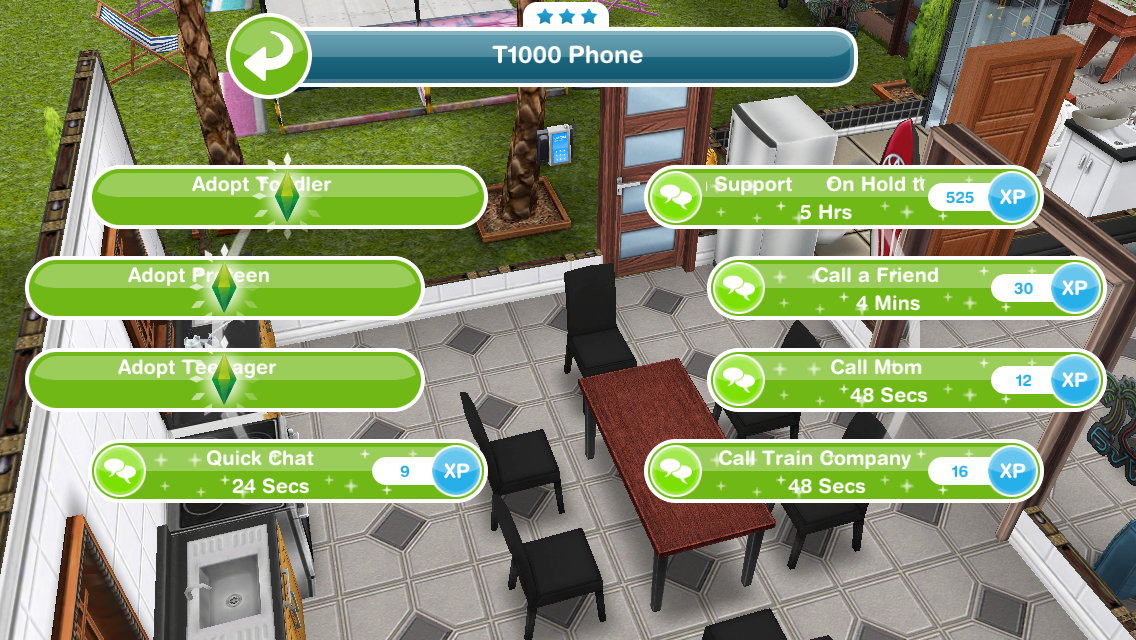
Call the train company- 48 seconds (using a phone)
Meet Thomas, the tiny conductor- 15 minutes
Ask about safety lessons- 2 hours 15 minutes (Thomas)
Read a book about trains- 8 hours 30 minutes (using a bookshelf)
Find a snack for Thomas- 1 hour 50 minutes (using a fridge)
Ask for safety lesson 1- 5 minutes (Thomas)
Demonstrate single seating- 10 hours (click on a seat)
Ask for safety lesson 2- 5 minutes (Thomas)
Send a sim to the park
Watch the train demonstration- 14 hours 45 minutes (train set in park)
Ask for safety lesson 3- 5 minutes (send a sim home and find Thomas)
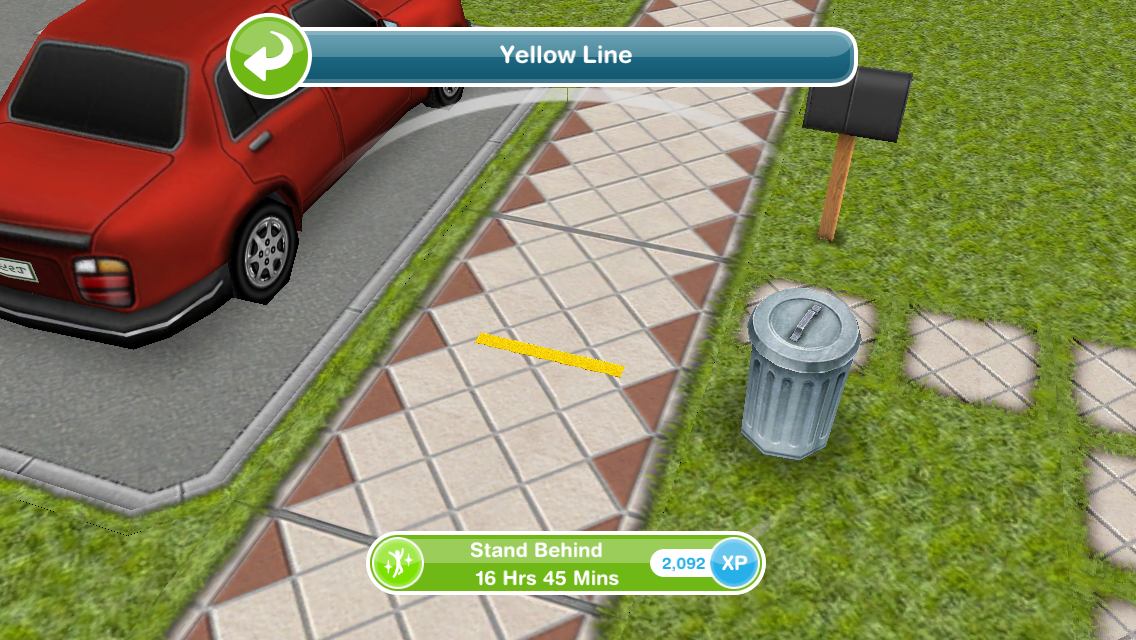
Stand behind the yellow line- 16 hours 45 minutes (appears at the front of the house you are at)
Search for the train key- 1 hour 50 minutes (bed)
Apologise to Thomas- 6 hours 15 minutes
Give cookies to Thomas- 1 minute (Thomas)
Ask for final lesson- 5 minutes (Thomas)
Practice holding on- 1 day (click on Thomas)
Guess Thomas’s age- 1 hour 15 minutes (I don’t think it matters which one you pick but he does say he is 5 and 3/4 earlier on!)
Travel on the Simtown Express
QUEST IS COMPLETE!
Now you have completed the quest you can take the Simtown Express to the Downtown Area! In the Downtown Area you can find the Hospital, Downtown High School and Penthouse Apartments!
Build the hospital to unlock the medical staff profession career- unsure about professions?Read this post!
Prize: Toddler Train Conductor Outfit Where can I find it? In the wardrobe, under outfits for a toddler
Cost? Free
Watch my step by step video of this quest here:
FREQUENTLY ASKED QUESTIONS ABOUT THIS QUEST
please read before asking
How do I start this discovery quest?
Build the simtown express to start this quest
Why can’t I do this discovery quest yet?
You cannot do more than one discovery quest at the same time, if you are currently on another one (the list can be found here) you will not be able to do this one until that one is completed
Help! I have built the hospital before the simtown express now I cannot build the simtown express, what should I do?You will need to contact the makers so they can fix this issue for you
Can I do discovery quests at the same time as a main quest?
Yes you can
Do I have to do this quest?
If you don’t start building the simtown express you don’t have to do this quest at all but if you have already started building or started this quest you need to complete it before you can move on to the next quest
I haven’t started this quest yet, will it still be available when I want to do it?
Yes it will be, you can choose to start it whenever you like
I can’t complete the train demonstration, why?
Thomas needs to be at the park to be able to complete this, if he isn’t, go back to the house he was last at, find him and then go back to the park. If he still doesn’t arrive at the park, click on the whistle on the simtracker to bring him there.
What do I get if I complete this quest in the time limit?
Toddler train conductor outfit, the one that Thomas wears in this quest
What happens if I don’t complete in the time limit, can I still finish this quest?
Yes you have to finish it to unlock the downtown area and hospital before you can move onto the next quest
I didn’t complete in the time limit, can I restart the quest?
No, you cannot redo quests
Can I still get the prize if I don’t complete in the time limit?
No, the only way to get the limited time prizes is by completing the quest in the time limit
I don’t like this quest! Can I just skip it?
No, you have to complete this quest before you can move onto the next one now that you have started it, if you don’t start building the simtown express you don’t have to do this quest but once it is built the quest will begin
Some times are slightly different on my game, why is this?
Times may vary depending on the star rating of the item you are using, as the higher star rating an item has the quicker you will complete a goal
Some times are really off/ different goals show for me, why is this?
This will be because the quest has been updated recently, I try my best to keep these posts up to date but it is difficult as I cannot redo every quest each time the game is updated. If you notice any changes please let me know so I can update the post
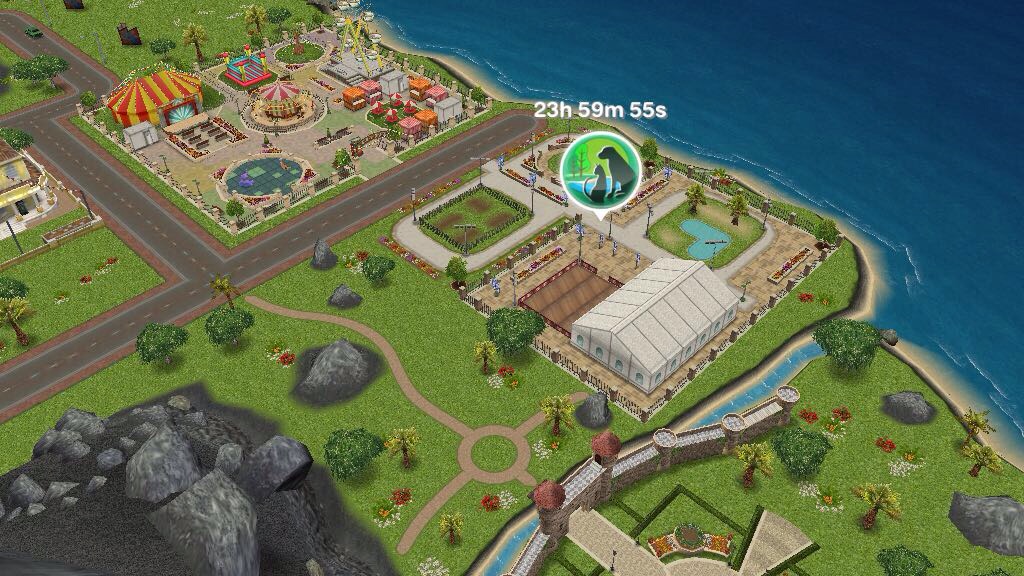
Once you unlock the pet park you unlock the Dog Obedience hobby for adults, seniors and teens
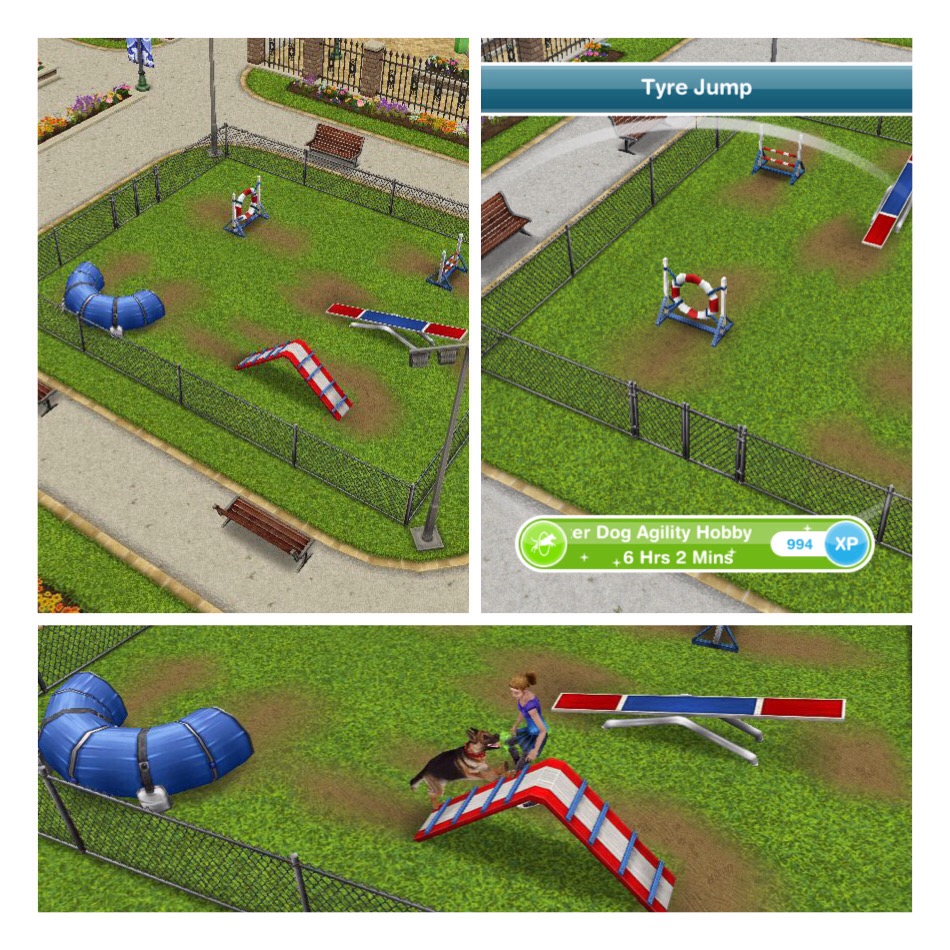
There are two other hobbies at the pet park, Dog Agility and Cat Show, these both require orbs to build the areas to start these hobbies:
Dog Agility: Requires 3 Silver Animal Fanatic Orbs and 2 Gold Animal Fanatic Orbs
You can have sims judge and watch the cat show but you do not need them to complete this hobby, you only need a sim to partake in the cat show hobby
What else is at the pet park?
One final area requires orbs to build
Nine Lives Cafe: Requires 2 Silver Animal Fanatic Orbs and 3 Gold Animal Fanatic Orbs to build
A sim can wait on tables while another sim waits for coffee, there is also a cat run in the cafe for your cats to use while they are at the pet park The dog pool unlocks when you build the pet park, this can be used by your dogs
How do I send my dogs and cats to the pet park?
To be able to send them to the pet park they need to be wearing collars, you can buy collars for them from the Pet Salon. Once they have a collar click on that pet and select ‘send to pet park’
I really like that cats and dogs can be included in the game more when you build the pet park however it does seem to take a long time to build all the places in this park so I would recommend only using Animal Fanatic Orbs to build the park, use the other orbs to pause your sims.
Once you unlock the carnival you unlock the Juggling hobby for adults and teens
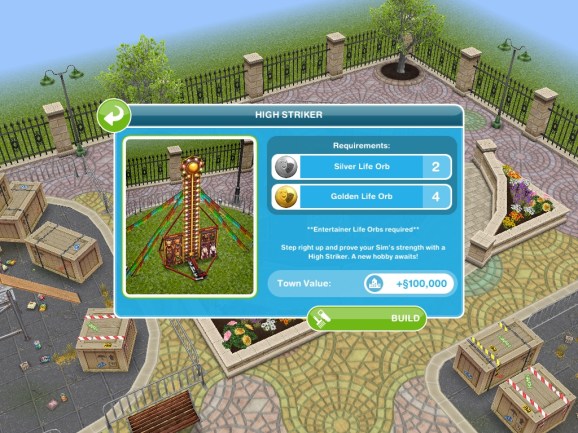
There is only one other hobby at the carnival, High Striker, orbs are required to build the area to start this hobby:
What else is at the carnival?
Three more areas at the carnival require orbs to build
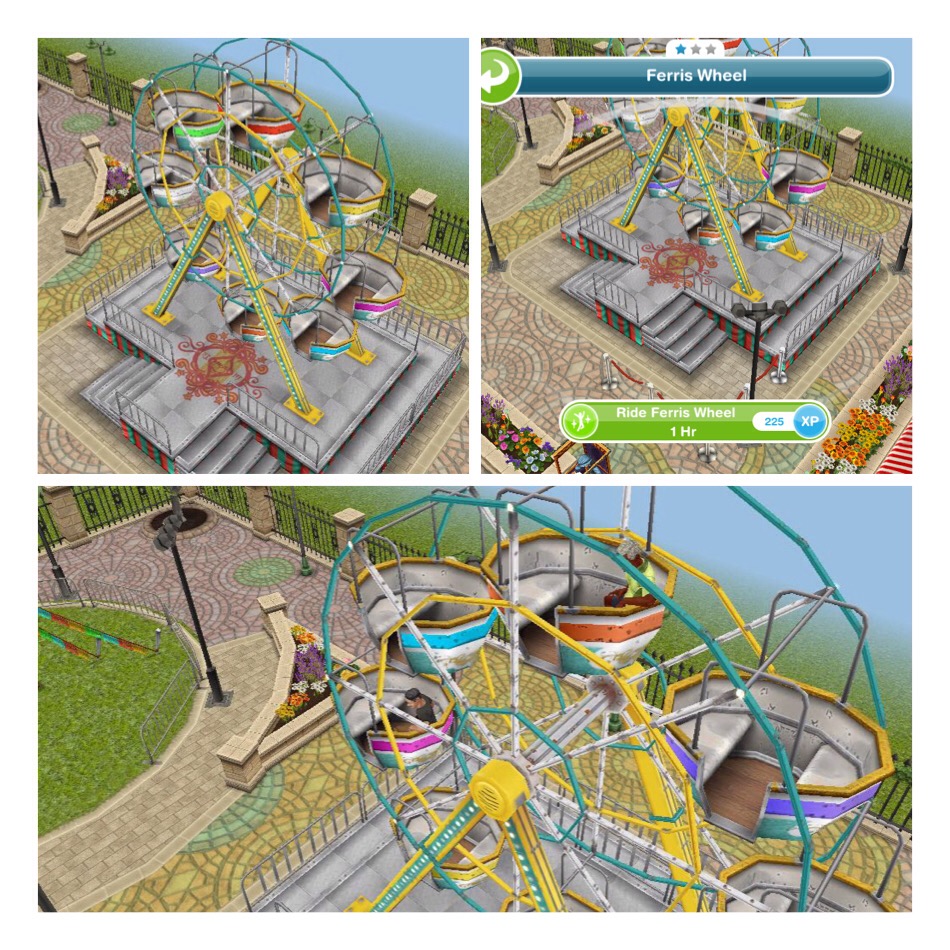
Ferris Wheel: Requires 3 Gold Entertainer Orbs and 2 Platinum Entertainer Orbs to build
Sims can ride the Ferris wheel for an hour
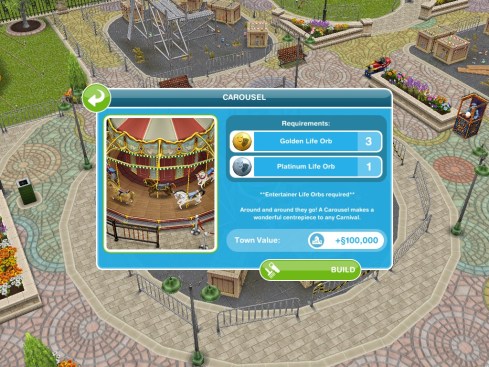
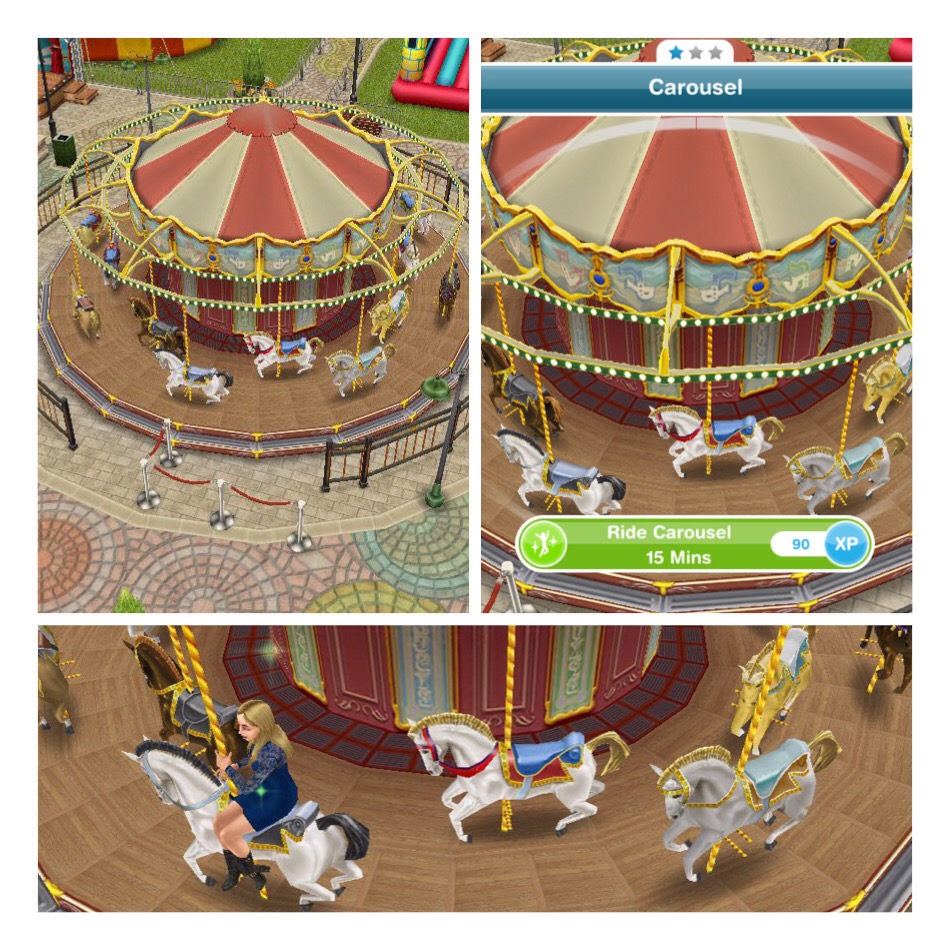
Carousel: Requires 3 Gold Entertainer Orbs and 1 Platinum Entertainer Orb to build
Sims can ride the carousel for 15 minutes
Jumping Castle: Requires 3 Gold Entertainer Orbs and 1 Platinum Entertainer Orb to build
The rest of these places unlock when you build the carnival
There are also toilets, food stands and tables: As well as fortune teller machines:
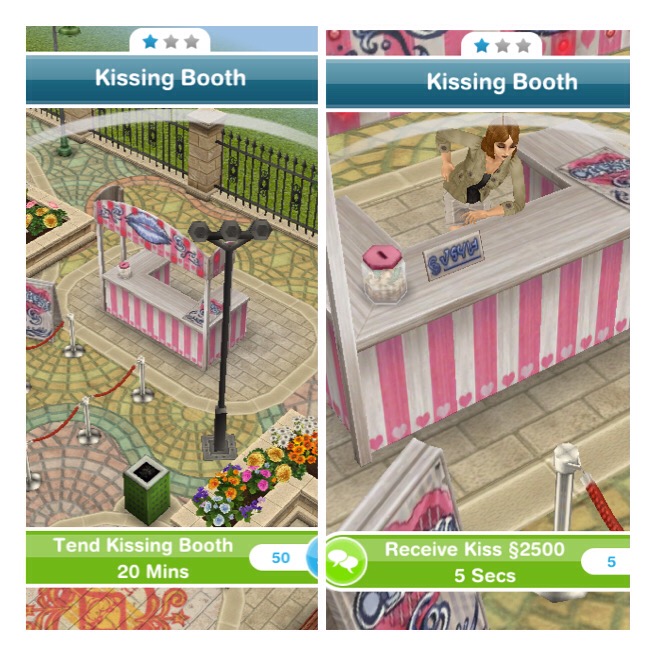
And a kissing booth, it costs S2500 to receive a kiss from the sim tending the booth:
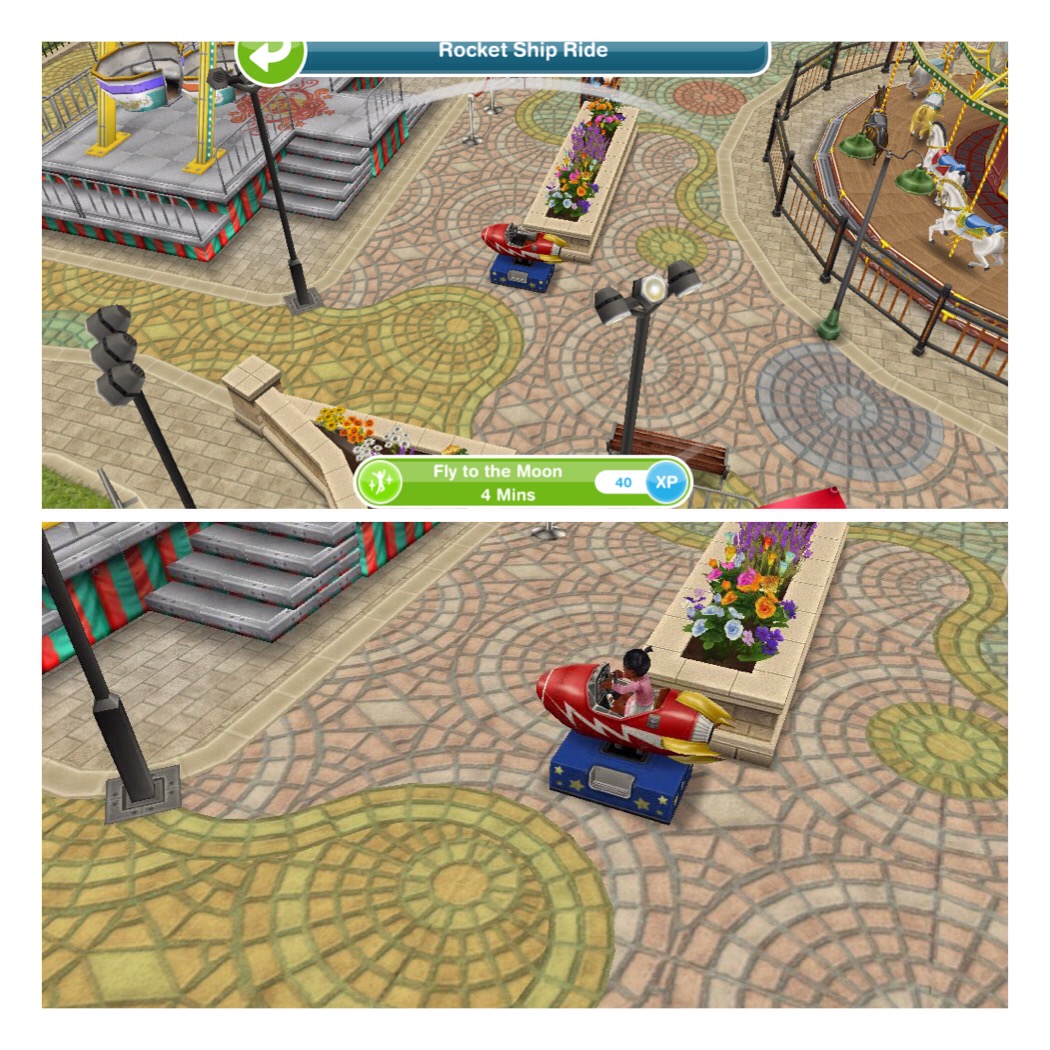
There is a rocket ship ride for toddlers, as well as a playground:
There is a tent at the carnival, I often get asked what is in the tent and the answer is- nothing! When you click on it a pop up appears but that seems to be all!
I like how there is only one other hobby at the carnival that requires orbs to unlock, everything else you need to unlock here requires platinum orbs which do take a while to earn but there really is no rush. I also don’t really understand the pop up that appears on the tent, it appears to just be forgotten about!
There are now four profession careers; Police, Filmmaker, Medical Staff and Spa Staff so I thought it would be a good idea to make a post explaining how these profession careers work.
What is the difference between professions and normal careers?
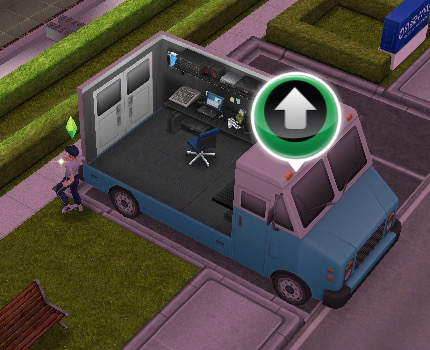
Professions are still careers but you can go with your sim to the workplace and while they are there they help sims to earn resources, these resources are used to build and upgrade areas inside the workplace called workstations.
Professions Training Quest
Once you have built a profession workplace the Professions Training Quest will begin (there is no time limit to this you just have to complete it before you can send anymore sims to work there- and yes you can complete it at the same time as other quests)
It is more of a tutorial than a quest
NOTE: you will only receive this quest the first time you build a profession workplace so when you reach level 6 in another profession it will not appear again, this quest below shows the police profession but it is the same for all professions.
Visit the police station
Send a sim to work at the police station (give them a job at the police station the same way you usually give them a job then click on the suitcase to send a sim to work- select accompany sim to go to the station with them)
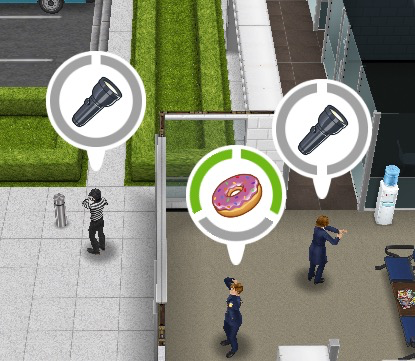
Help a sim at the police station- tap a bubble that appears over a sims head and complete one of the tasks
Help again at the police station- complete the second task on the bubble
Check workplace overview (found in the profession menu in the top left on your screen while at the police station)
Check workplace storage (second tab in the profession menu)
Help a sim at the police station
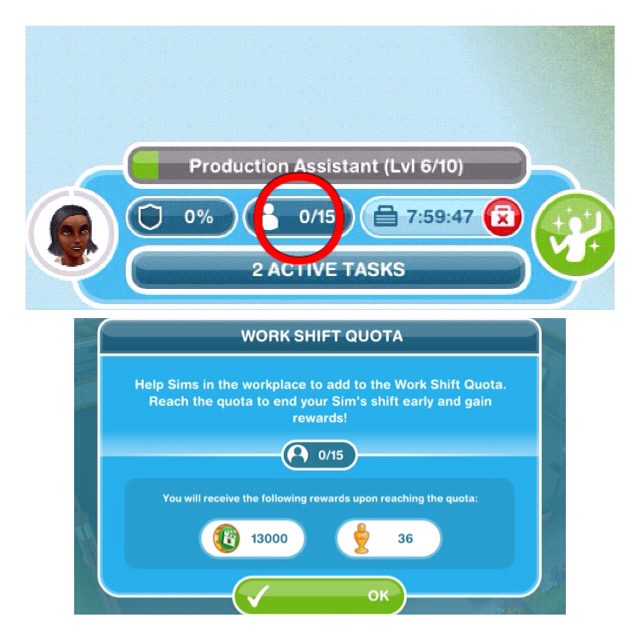
Check the work shift quota- this can be found on the work bar:
Fulfil special requests- this is a task where the bubble shows a question mark instead of the resource, complete the tasks to find out what resource you will be rewarded
Trade resources (third tab in the profession menu)
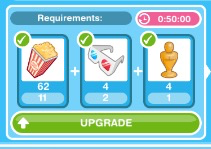
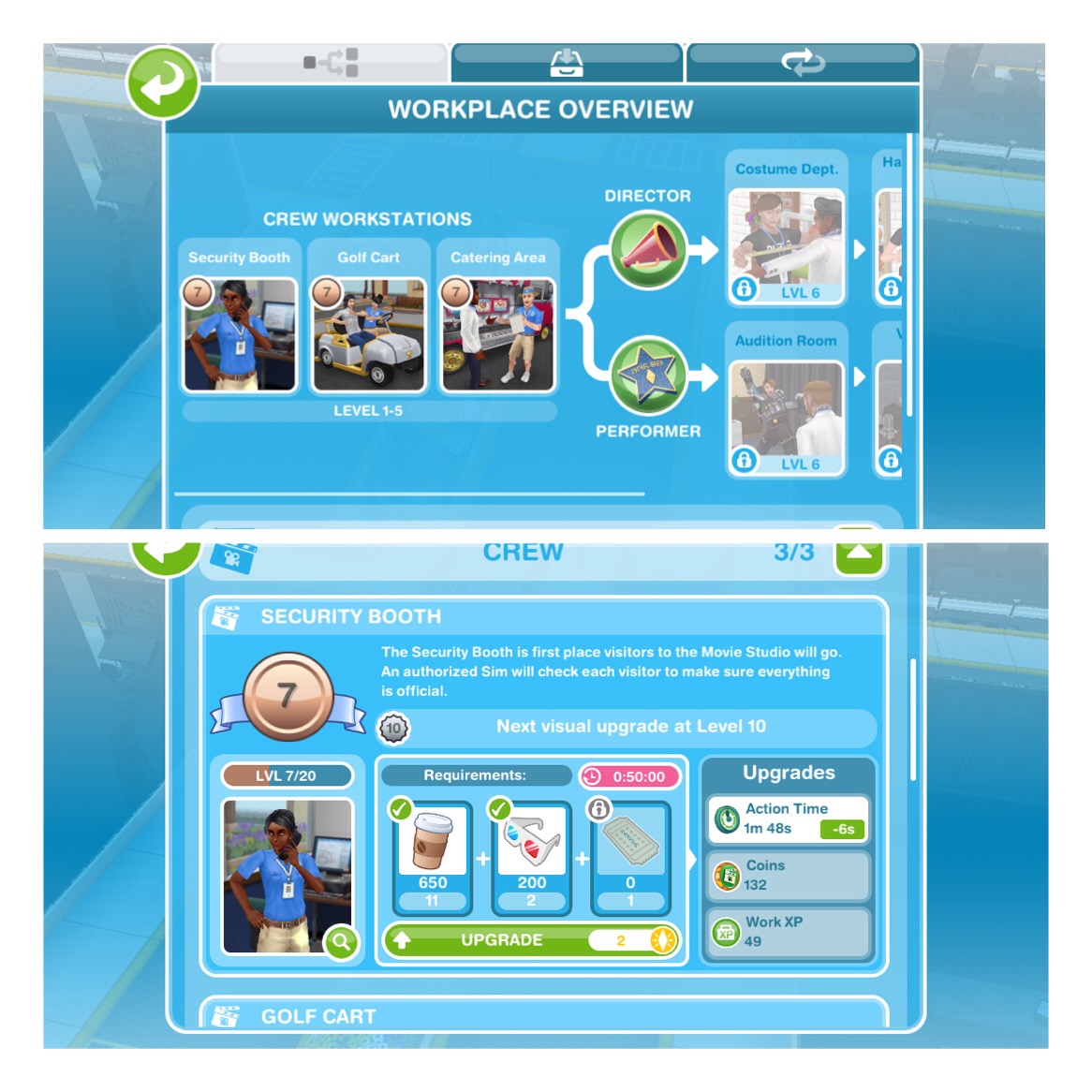
Upgrade a workstation- click on a green arrow at one of the workstations to get the option to upgrade it
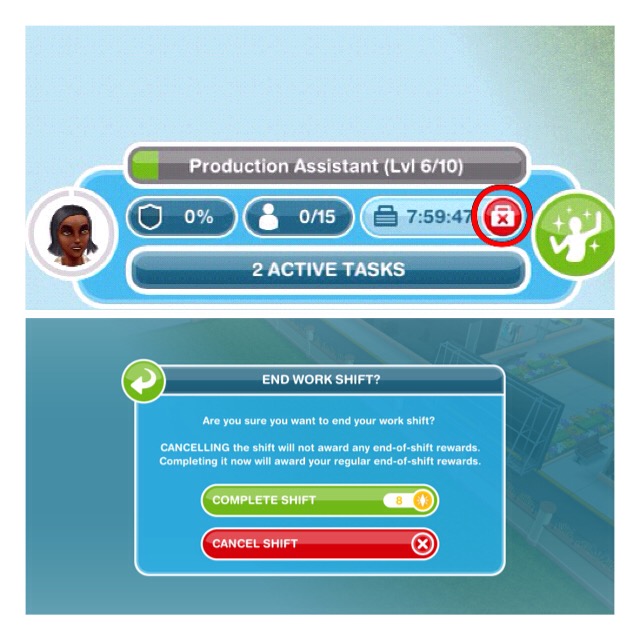
Complete the remaining work day- either keep helping sims, leave your sim to work or click on the red cross on the work bar and then on complete shift (this will usually cost you LPs
QUEST IS COMPLETE!
Once you complete the quest you can send other sims to work there
How do I help sims?
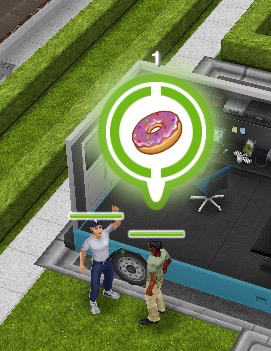
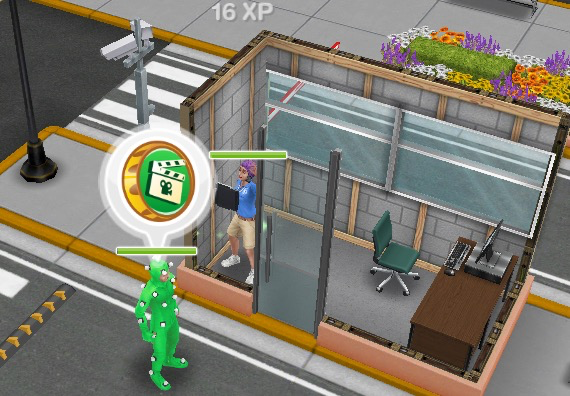
When you send a sim to work sims will enter with bubbles above their heads, you need to click on this bubble and select one of the tasks that appears, the amount of grey sections there are tells you how many tasks you have to complete before you earn the reward (which is a resource) that is pictured in the middle of the bubble:
Each task has to be completed in a different workstation and only one sim can use a workstation at one time (new tasks will be added when you unlock new workstations)
Each time your sims complete a task (that section will turn from grey to green) a coin bubble will appear above their head, click this and they will earn coins and XPs, the experience points are towards levelling up, so they will level up quicker than if you just sent them to work.
Once all the tasks have been completed all the grey sections will now appear green, click on this to receive your reward.
Sometimes you may see a question mark appear in the bubble instead of a resource, this is a mystery resource, you will find out what it is when you complete the tasks:
these are important sims needed to collect badges
Does the same sim have to complete all the tasks when they help a sim?
No they don’t
Can I send one of the sims away if I don’t want to help them right now?
No, they will stay at the workplace until you help them
What are resources used for?
The resources are used to build and upgrade the different workstations within the workplace. Build new workstations to unlock new resources
What are coins used for?
Coins are used to increase your storage and trade for resources
Can I send my sim to work on their own like a normal career? Will they still collect resources?
Yes you can send them to work on their own and they will still level up however they will level up slower than if they help sims and they will not collect any resources.
What is the work shift quota?
The work shift quota shows how many sims you need to help within the shift to finish their shift early and earn bonus resources What are the workstations?
Once your sim reaches level 6 you can decide which career to specialise them in: either Metro Police or Special Agent, you will need to have a sim as each to be able to unlock the other workstations
Metro Police:
Squad Car- level 6 Metro Police
Jail Cells- level 7 Metro Police
K-9 Unit- level 8 Metro Police
Chiefs Office- level 9 Metro Police
Only the metro police officer will be able to complete tasks to help sims that require one of the workstations above
Special Agent:
Interview Room- level 6 Special Agent
Sketch Room- level 7 Special Agent
Forensics Lab- level 8 Special Agent
Division 51- level 9 Special Agent
Only the special agent will be able to complete tasks to help sims that require one of the workstations above
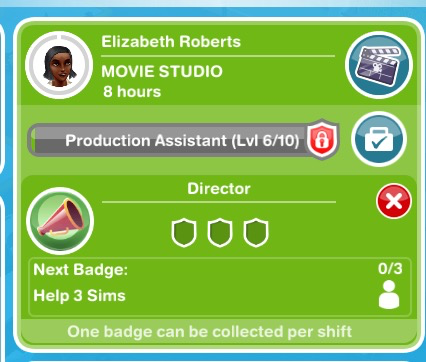
Once your sim reaches level 6 you can decide which career to specialise them in: either Director or Performer, you will need to have a sim as each to be able to unlock the other workstations
Director:
Costume Department- level 6 Director
Hair and Makeup Department- level 7 Director
Stunt Set- level 8 Director
Directors Trailer- level 9 Director
Only the director will be able to complete tasks to help sims that require one of the workstations above
Performer:
Audition Room- level 6 Performer
Voice-over Booth- level 7 Performer
Film Set- level 8 Performer
A-list Celebrity Trailer- level 9 Performer
Only the performer will be able to complete tasks to help sims that require one of the workstations above
Once your sim reaches level 6 you can decide which career to specialise them in: either Nurse or Doctor, you will need to have a sim as each to be able to unlock the other workstations
NOTE: you can only have one sim as a nurse and one sim as a doctor
Nurse:
Pharmacy- level 6 Nurse
Triage- level 7 Nurse
Radiology- level 8 Nurse
Ward- level 9 Nurse
Only the nurse will be able to complete tasks to help sims that require one of the workstations above
Doctor:
General Practice- level 6 Doctor
Psychiatrist’s Office- level 7 Doctor
Research Laboratory- level 8 Doctor
Surgery Room- level 9 Doctor
Only the doctor will be able to complete tasks to help sims that require one of the workstations above
What do you get for upgrading workstations?
Each time you upgrade a workstation one of the following will happen:
The time taken to complete the task will decrease
The amount of coins you receive will increase
The amount of XPs you receive will increase
YOU WILL NOT GET ALL OF THESE UPGRADES EACH TIME, ONLY ONE
Why do I need to be VIP 7 to upgrade a workstation?
You don’t! If you are VIP 7 you can upgrade two workstations at once, if you aren’t you will need to wait for the previous workstation upgrade to complete before upgrading the next.
Why is it costing me LPs to build a workstation?
This is because you do not have enough resources to build or upgrade the workstation yet, just help sims and collect the resources to be able to build without it costing you LPs Can I buy another one of each workstation?
No you cannot
How can I earn the resources I need quicker?
Watch this video:
Professions Menu
You can access this using the button in the top left hand corner of your screen when you are at the profession workplace
Workplace Overview- here you can see the workstations you have currently unlocked, what level you are on and what resources you need to upgrade them
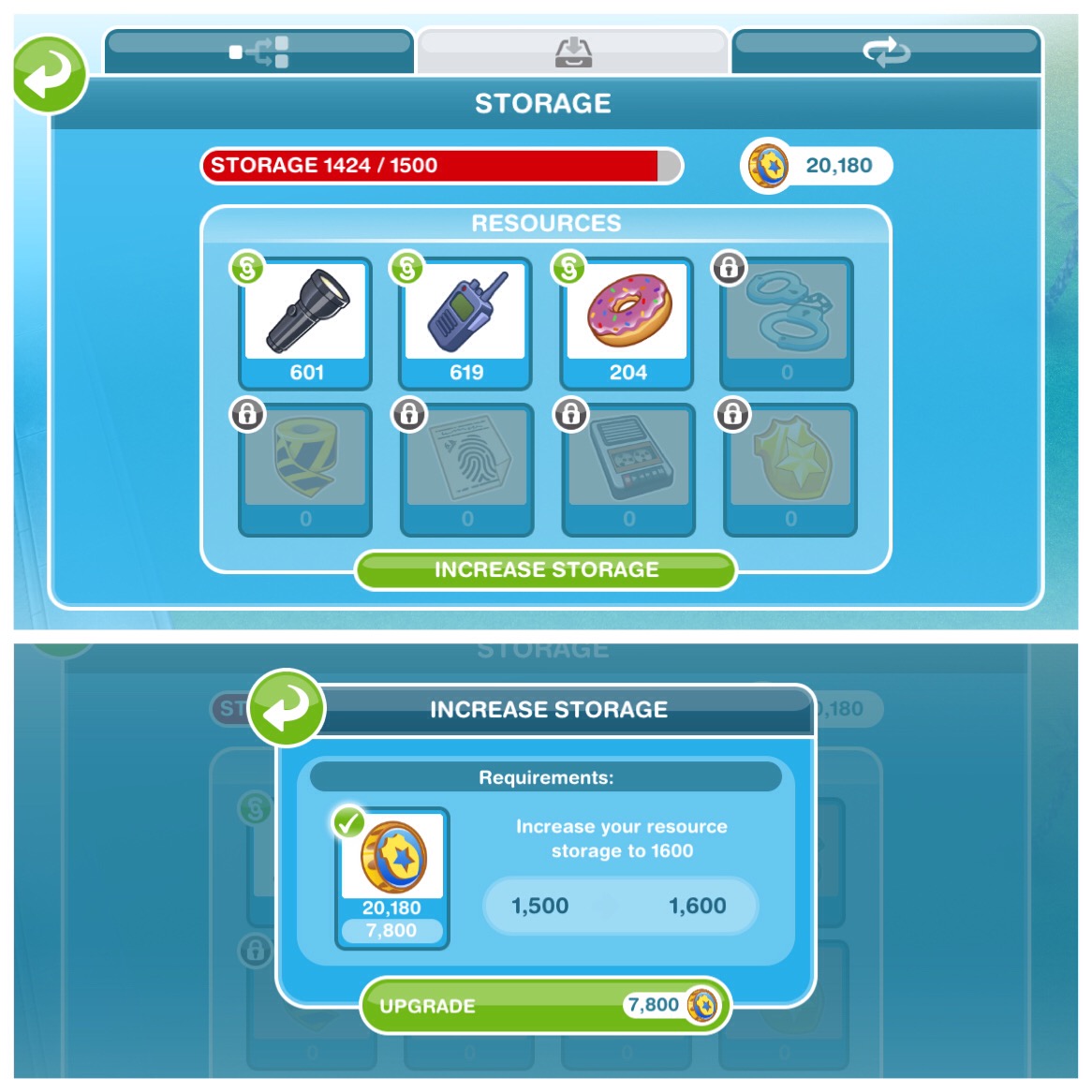
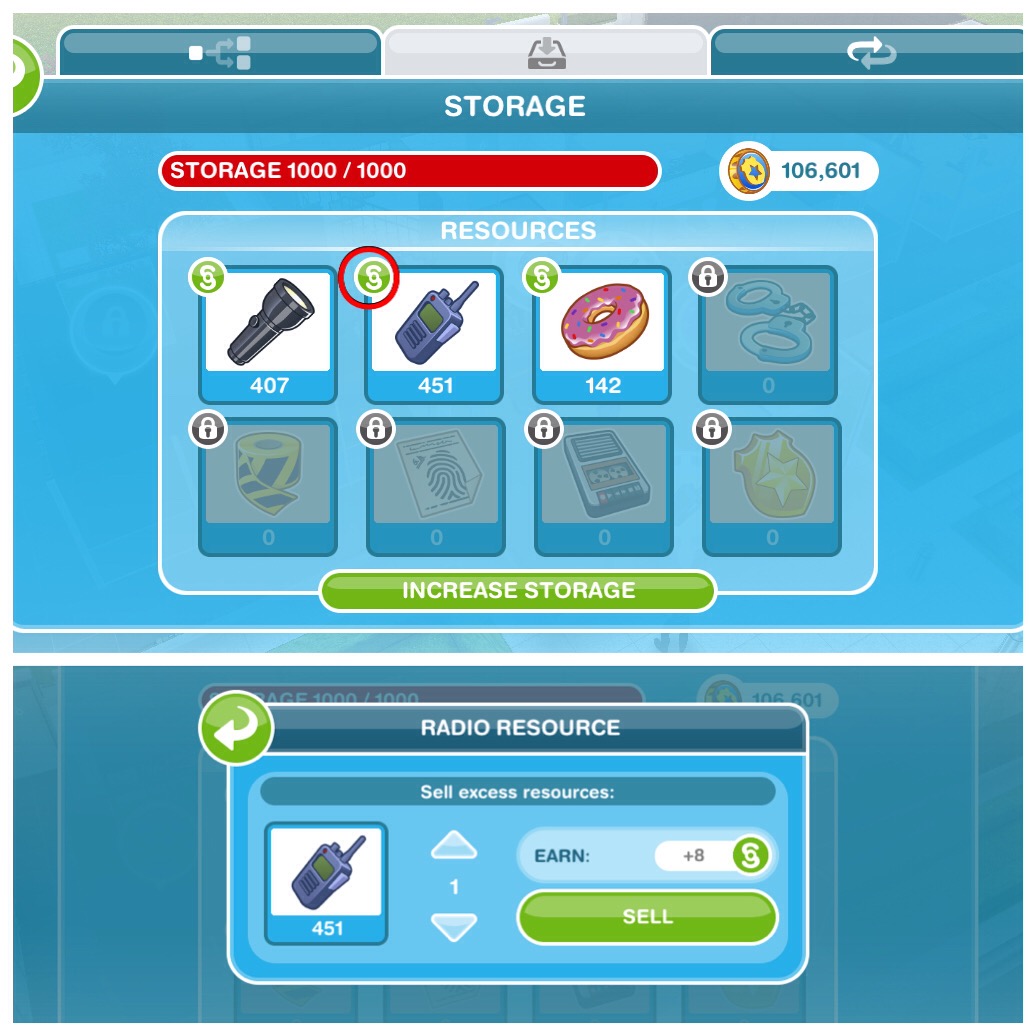
Storage- this is where you see your current resources collected and on the right hand side is your coins, the coins are used to increase your storage if you need to and trade for resources (which is in the next tab)
How do I increase my storage space?
Go to the Storage tab and click on increase storage, this will cost you coins:
NOTE: if you don’t have enough coins this will cost you LPs, just collect more coins and you will be able to use the coins to upgrade your storage
What is the maximum storage space for each profession career?
Police is 5000, Filmmaker and Medical Staff are both 2600
What should I do if I run out of storage space?
You can sell any unwanted resources, go to the storage tab and click on the simoleon symbol next to a resource and select the amount you want to sell for simoleons:
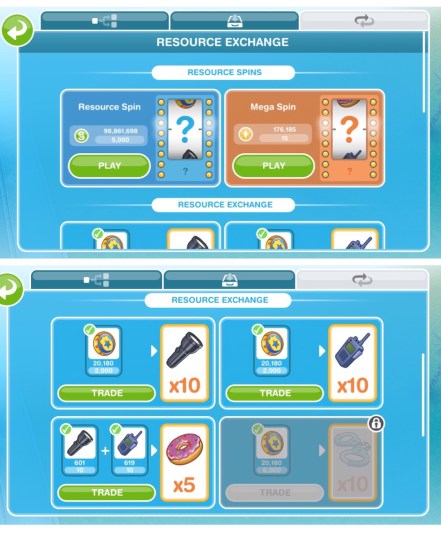
Resource Exchange- here you can either spin for resources using simoleons or LPs for the mega spin as well as trade coins for resources
How does the resource spin work?
There are two resource spins:
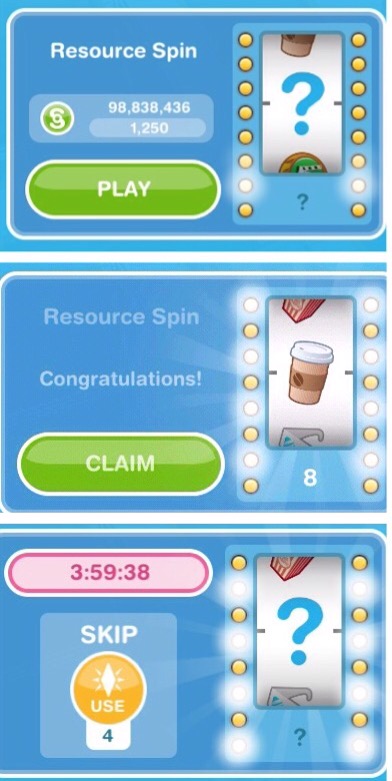
Resource spin costing simoleons- available for everyone, click to spin and it will spin and then you can claim your resources
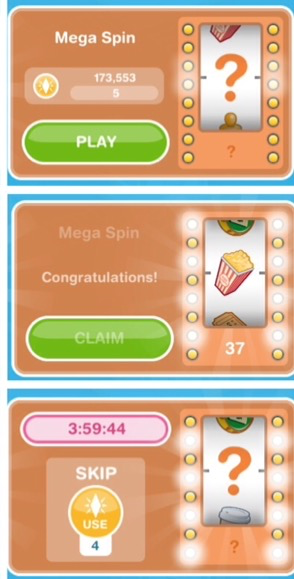
Mega spin costing LPs- only available for VIP level 2 players, works the same as the other spin but will give you more resources.
NOTE: You can only use both of these every 4 hours unless you pay 4LPs to spin again straight away How does trading for resources work?
On the left you have the item you are trading and on the right you have the item you will receive for trading, click trade
Reaching Level 6- Specialising a Sim
Once you reach level 6 for the first time a new quest will begin (it isn’t really a quest and yes you can do it at the same time as other quests) It shows you how to select the specialist for your sim and how to get promoted
Professions: Specialisation Training
Assign a specialist to a level 6 sim- click on the occupations (career) tab, find the level 6 sim and choose one of the two options for that career:
NOTE: you can only have one sim on each of these options
Fulfil a profession badge- check the occupations tab to find out what you need to do to complete this, I had help 3 sims, to complete this I needed to help 3 sims that came to the workplace by completing all of the tasks
Each sim can only earn one badge per shift and you need all badges before you will be able to level up in that career
If you don’t manage to complete a badge in a shift the progress for that badge will reset and you will have start again on the next shift (for example, if your task is to help 2 important sims and you only help one, in your next shift it will reset so you will have to help 2 important sims in that shift to get the badge)
Each level requires you to complete more badges, you cannot level up until all the badges have been collected.
Build a workstation at a profession workplace- if you do not have the right amount of resources it will say it costs LPs to build- just help sims to gain resources and it won’t cost you LPs
Who are the important sims I need to help to get a badge?
These are the sims with question marks in the bubbles above their heads
Reaching Level 10
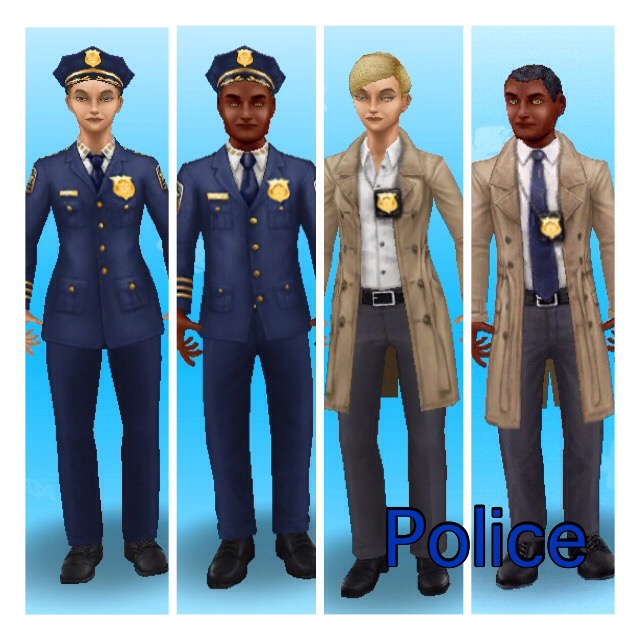
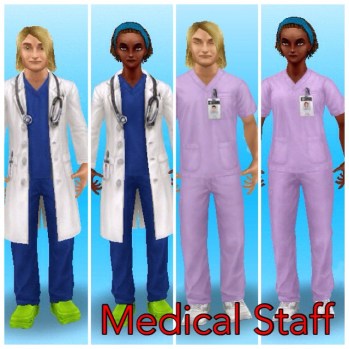
When you reach level 10 in a profession career you unlock the work outfit in that specialist for a female and male adult sim to wear at any time!
Left- metro police outfits Right- special agent outfitsLeft- director outfits Right- actor outfitsLeft- doctor outfits Right- nurse outfits
Find them in the wardrobe under outfits once you reach level 10
Orange Suitcase? Can’t send your sims to work?
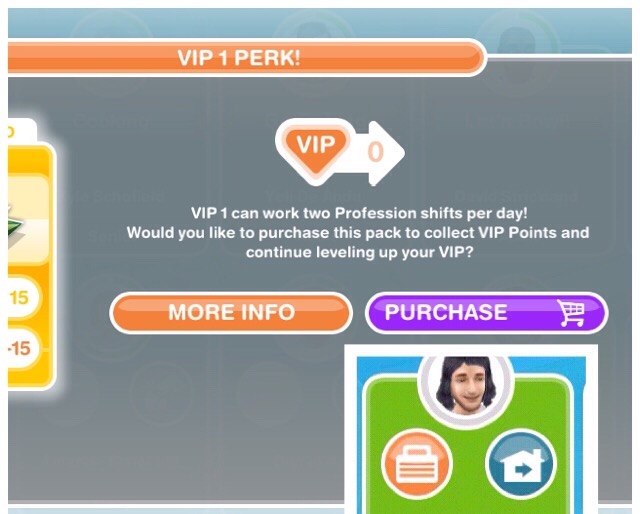
This is because you have already sent them to work once today, if you are VIP level 1 you can send them to work twice in a day (this will cost you 15LPs still if you are VIP)
Wait until tomorrow and you will be able to send them to work again without being VIP.
Do I need to be VIP to use profession workplaces?
NO!If you are VIP you can send your sims to work twice a day (VIP level 1), upgrade more than one workstation at a time (VIP level 7) and use the mega spin (VIP level 2) but you do not need to be VIP
How do I cancel a work shift?
Click on the red cross on the sims need bar and select cancel shift My sims are ageing to seniors before they have reached the highest level, what can I do?
You could reverse their ageing (again read the post linked above) when they come to the end of their time as an adult but this is going to cost you a lot of LPs! It may be worth doing this while you are working on getting a platinum orb so you don’t have to start from level 1 with another sim and have to go through the ageing all over again!
How do you level up quicker?
The only way to level up quicker is to go to work each day and help the amount of sims needed to fulfil your work quota each day but you need to remember that each time you level up it will take you longer to reach the next level
If you are trying to complete the movie star career quicker you can use the movie camera from the promotions r store to level them up quicker
TIP: the higher level a workstation is the more career experience points you will to level up quicker
Who is this sim (pictured below) who appears?
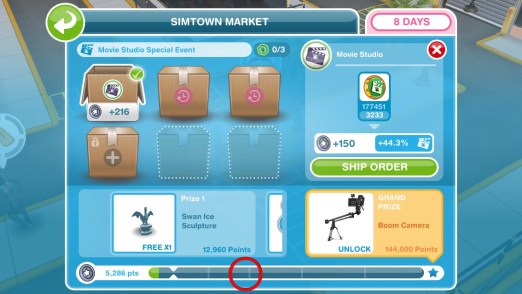
He is the courier for the simtown market event, he will appear at the profession workplace where the event is taking place. If you complete all the tasks he has before the time above the bubble is up you will earn a market token needed to ship some orders (other orders need workplace resources to ship) You need to ship orders to fill up the bar and earn prizes:
You can only send two sims to work to help sims, all other sims will be working ‘offsite’ so they will still go to work but you will not see them, like normal careers (even when your level increases you can still only have two there)
Only one sim can use a workstation at a time
Important sims are the ones with question marks in the bubbles above their heads
If you send a sim to work without going with them they will still level up but just slower than if they help sims and they will not earn any resources
You can only upgrade one workstation at a time unless you are VIP 7
Each workstation can be upgraded 20 times
It will cost you LPs to build a workstation if you do not have enough resources, help more sims to collect the resources to build the workstation without LPs
You can only have one sim in each specialism
Only the sim in that specialism can use the workstations, for example only the Performer can complete the Film Set actions
If you are VIP you get some perks but you don’t need to be VIP!
There is no time limit on completing a profession career and workplace, you can take as long as you like!
Thanks for reading!
Frequently Asked Questions About Profession Careers:

 They will be at school for 5 hours and will start from level 3, grade C (no idea why they don’t start from level 1 but you can get them down to level one (if you really wanted to) by having them leave school and then enroll again, each time they leave they will level down)
 Level 4: C+ 2+2 is 4 poster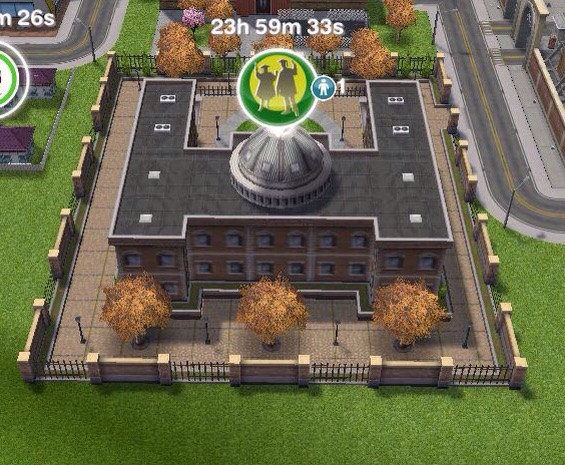































 The Girl Who Games